
Years ago, I made the switch from Windows to Mac and I’ve never looked back. I find the Mac easier to use with a slicker and more logical interface. I highly recommend giving it a try. One of my favorite accessories is the Apple Magic Mouse. Like the name says, it seems to work like “magic”. It’s sleekly designed, but more importantly, it functions so much better than a traditional mouse. In this article I’ll go over how it’s designed and built, setup, ergonomics, battery/charging, workflow and how it compares to a traditional mouse.
What is the Apple Magic Mouse?
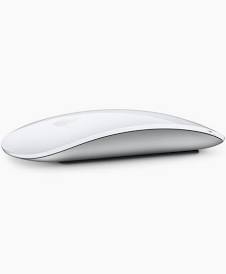
At first glance, this mouse looks like something from the future. There’s no scroll wheel or buttons, just a smooth glass covering. You might wonder how it works and I’ll explain that later. It’s sleek design is made from aluminum and glass and it just looks great on any desk. It’s designed specifically for the Mac OS, but actually works on Windows with limited functionality. Other cool features include Bluetooth connectivity and a rechargeable battery.
Design and Build
The design of the mouse is futuristic and the style is integrated with the overall aesthetic of the Apple universe of products. I love it, but then again, I’m an Apple lover who chooses to balance form and function. It’s available in either white or black and I opted for the white version to match my Apple keyboard. The bottom is standard Apple aluminum and the top surface is smooth glass with no visible buttons or scroll wheel. Compared to a traditional mouse, I find it much lighter and less bulky/cumbersome to use (more on that later). Of course, like all Apple products it’s built with the highest quality, meaning it might just be the last mouse you ever buy. I’ve been using mine for 5 years and haven’t had any issues.
Setup and Connectivity
I find it a breeze to connect my Magic Mouse to my Apple devices. It’s a simple Bluetooth pairing that takes less than a minute. It’s automatic and you don’t have to install any special software or drivers to use it. I customized how the mouse functions by going to Setup –> Mouse. You can adjust the tracking speed, how the scrolling functions and where you would like the secondary click to operate (left or right side). There’s even a “smart zoom” function that you can enable that makes the mouse zoom with a double tap of one finger.
Using The Magic Mouse
When I got my first magic mouse, it didn’t take me long to learn how to use it. Instead of a scroll wheel, you simply move your finger vertically up and down the center of the mouse. The gesture is smooth and quick, especially compared to a traditional mouse wheel. To scroll horizontally (like on a web browser), simply slide your finger left or right. Overall, I find it makes my workflow quicker and more efficient. Every gesture is faster and smoother than a traditional mouse. Now some people might like the feel of actual buttons; if so, this mouse is not for them. Also, this mouse is definitely not for gaming. Since I don’t play any games, it’s not an issue for me. If you are a gamer, you can always switch between mice when you are gaming.
Ergonomics and Comfort
This mouse is the most comfortable I’ve ever used. It’s designed in a shape that perfectly conforms to your hand and it just feels natural. I’ve never gotten a sore wrist while using this mouse and probably works well for people prone to carpal tunnel syndrome. It is lower to the desk than a traditional mouse which means there’s no palm support, so you are gripping the mouse with your thumb and ring finger, with your index and second fingers on the mouse itself. You might think is a matter of form over function and while that’s somewhat true, the efficiency you gain while using the mouse makes up for any discomfort you might experience.
Performance and Tracking
The tracking is extremely precise and I find it goes exactly where I want and when I want. Wherever I move my mouse, it goes. I find it to be very fast, although I’ve adjusted my tracking to the maximum speed. But even if you set it to slower speeds it moves very smoothly. As I mentioned before, it’s overall performance has increased my productivity, ease of navigating and using various apps, particularly work related like Excel, Word and email.
Battery and Charging
One of my favorite features is the rechargeable battery. The battery life is great, lasting up to a month and more depending on my usage. I use it most of the day several days of the week and I’m very happy with how infrequently I need to charge it. If you have an Apple device, you can always check the battery charge in the Bluetooth settings. The only annoying thing is that the charging port is underneath the mouse, meaning you can’t use the mouse while charging. I typically plug it in and let is charge overnight so it’s ready to go the next morning.
PROS
- Beautiful Apple design
- Smooth gesture control
- Excellent macOS integration
- Long battery life
- Improves productivity
- Easy to charge
CONS
- Poor ergonomics for some users
- Bottom charging port
- No extra buttons
- Expensive vs basic mice
FINAL THOUGHTS
Overall, I think the Magic Mouse is the best mouse out there, but only if you own a Mac. Using it on a Windows computer will not have all the advantages. Its design is sleek and good looking, but more importantly it performs great and increases your productivity. Compared to a traditional mouse its quicker and smoother to use. Some people may not like its ergonomic design, but I find it extremely comfortable and natural.
FAQ
Can I use this mouse with a Windows computer?
Yes, it will work with a Windows computer, but you will not get the full functionality and customization options that you would with a Mac.
How much does it cost?
A new magic mouse costs $69 for the white version and $94 for the black version. I’ll never understand why tech companies charge different prices for different colors. You can get a used mouse on eBay for under $50. I always buy a used one and have never had any problems.
How does it connect?
Like most modern mice, it connects through Bluetooth and is instantaneous. You don’t have to configure anything or setup any special software, at least if you’re on a Mac.